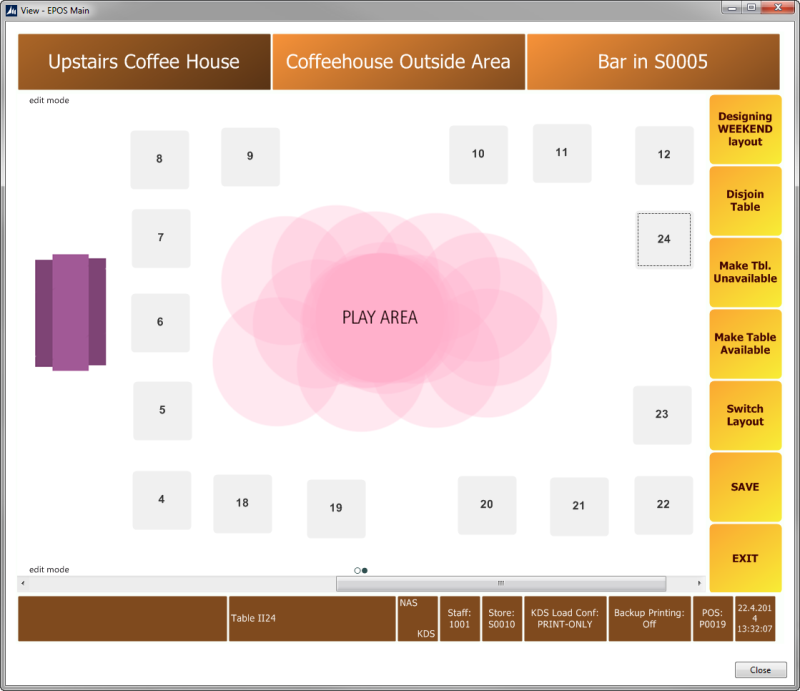
In this example you want to create a new layout for the Upstairs Coffee House. You do this by copying the DAY layout to a new WEEKEND layout.
To copy a dining area layout
- Go to LS Hospitality - Point of Sales - POS - Dining Areas.
- Double-click S0010-RESTAURANT.
- Click the Layouts action on the Home menu.
- Select the layout and click Copy Layout on the Home action menu.
-
Enter WEEKEND in the Copy to Layout field:
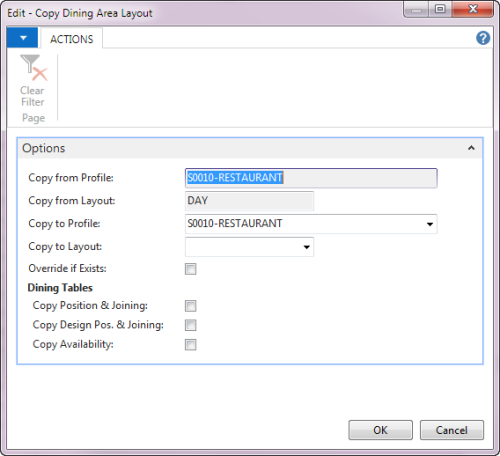
- Select the check boxes Dining Tables as desired.
- Click OK to run the batch job.
To design a new layout
- Go to LS Hospitality - Point of Sales - POS - Administration - Retail Users.
- Select store S0010 and POS terminal P0019.
- Click Run Client.
- On the POS, press Logon and logon with staff 1001.
- Press Design Tables.
-
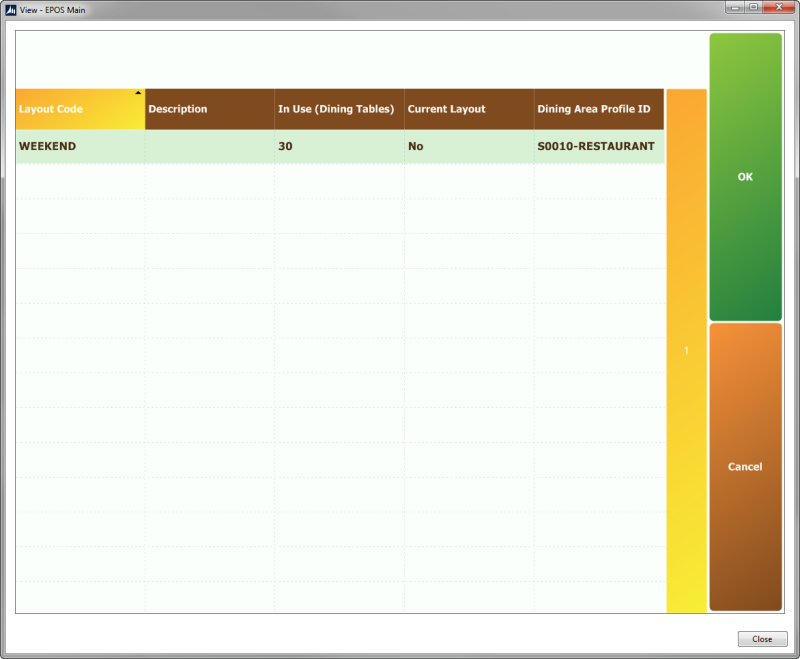
Press Switch Layout. The lookup window shows other layouts than the current one. Select the Weekend layout and press OK:
-
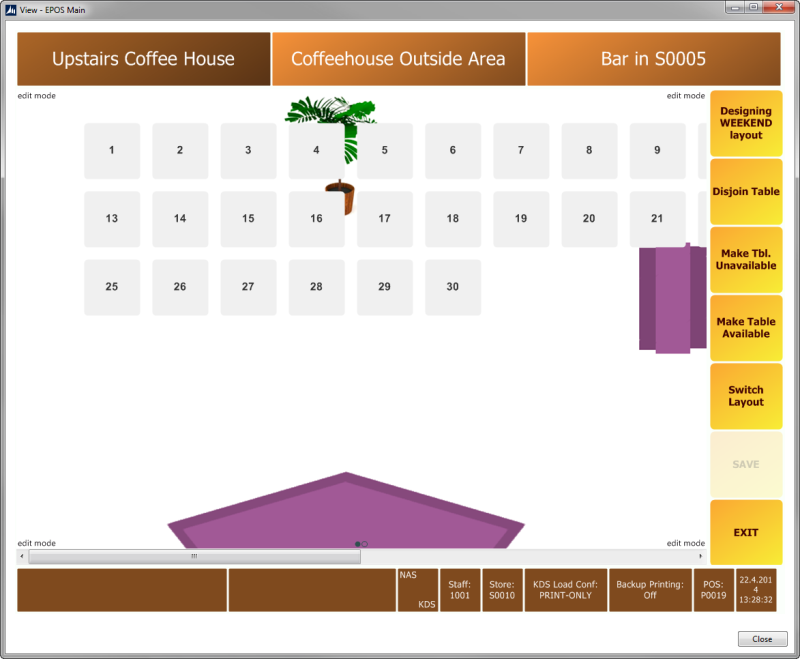
Move the tables as shown in the following images:
-
Press SAVE: